
PhotoLab Demo
Coming Soon!
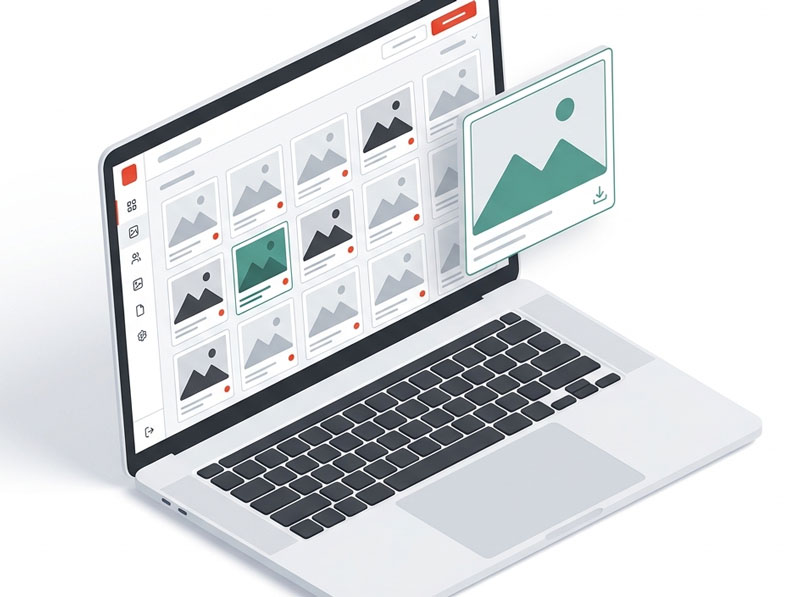
PhotoLab is a clean photo gallery and download manager for Joomla 5 and 6. Upload, organise, preview, and share image collections with automatic thumbnails, category browsing, a responsive lightbox, individual downloads, ZIP downloads, and simple download tracking.
Key Features
- Admin image library — upload images, edit titles, assign categories, publish/unpublish, and delete files from Joomla.
- Category management — create named galleries with descriptions and use them in frontend views.
- Automatic thumbnails — gallery thumbnails are generated during upload for fast grid loading.
- Responsive gallery — polished grid layout with lazy loading and mobile-friendly controls.
- Lightbox preview — full-screen image preview with previous/next navigation and direct download access.
- Download originals — visitors can download single images from the card or lightbox.
- ZIP download — visitors can select multiple images and download them together.
- Category filter — optional frontend dropdown for filtering a gallery by category.
- Dashboard reporting — track total images, categories, downloads today, downloads this month, top downloads, and recent activity.
- Photo module — show latest, oldest, or random images in module positions.
Demo Login
Username
demo
Password
demo#1234
Getting Started
Browsing the Gallery (Front-end)
- Click View Front-end Demo above to open a sample PhotoLab gallery.
- Use the category filter, if enabled, to switch between image collections.
- Click a thumbnail to open the lightbox preview.
- Use the previous and next controls to move through the gallery.
- Click Download original to download a single image.
- Select multiple images in the grid and click Download selected as ZIP to download a batch.
Managing Photos (Admin)
- Click Open Admin Panel and log in with the demo credentials.
- Go to Components > PhotoLab.
- The Dashboard shows totals, download activity, top images, and recent downloads.
- Open Categories to create or edit gallery categories.
- Open Images to upload, edit, publish, unpublish, move, or delete images.
Creating a Gallery
- Go to Components > PhotoLab > Categories and click New.
- Enter a title and optional description, then save the category.
- Go to Components > PhotoLab > Images.
- Select a category and upload one or more image files.
- PhotoLab stores the originals and creates thumbnails automatically.
- Use the publish controls to decide which images appear on the frontend.
Publishing a Frontend Page
- Go to Menus and edit the menu where you want the gallery to appear.
- Create a new menu item.
- Set the menu item type to PhotoLab > Gallery or PhotoLab > Categories.
- For a gallery menu item, choose a category or leave it set to all categories.
- Enable Show category filter if visitors should switch categories on the page.
- Save the menu item and open it on the frontend.
Using the Module
- Go to Content > Site Modules and create a PhotoLab module.
- Select all categories or a specific category.
- Choose how many images to show and whether they should be latest, oldest, or random.
- Optionally link the module to a gallery menu item.
- Assign the module to a template position and publish it.