
MapLab Pro Demo
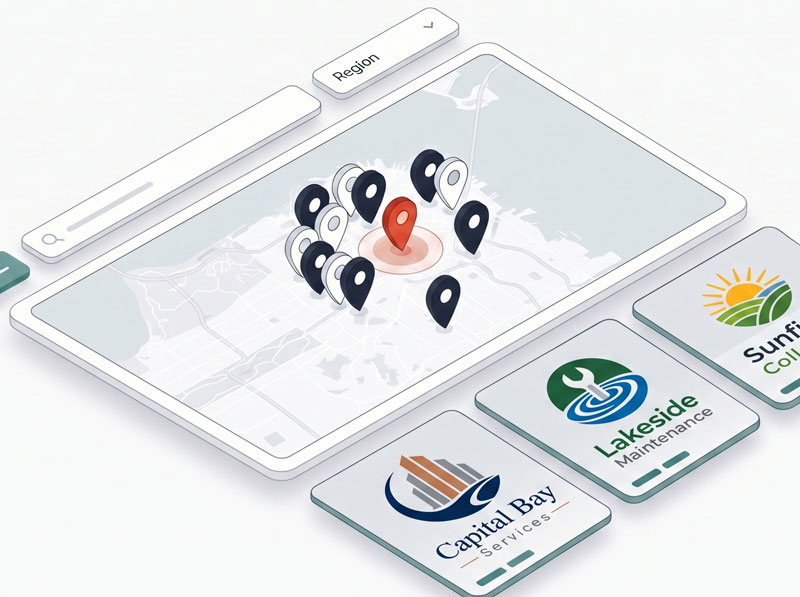
MapLab Pro turns Joomla into a flexible location map and directory manager. This demo shows a searchable map with region filtering, marker clustering, popups, location cards, custom fields, and location detail pages.
Use the frontend demo to search and filter locations, open marker popups, and browse location cards. Then open the admin demo to see how maps, regions, locations, custom fields, CSV import/export, and Data Health are managed.
It is ideal for dealer networks, stockist maps, branch directories, service centre finders, venue maps, pickup point directories, and other location-based Joomla sites.
Key Features:
- Multiple Map Datasets - create separate maps for branches, dealers, service centres, stockists, events, or brands.
- Map-Scoped Regions - manage filter regions per map, with map filtering and map names in the Regions admin list.
- Unified Location Field Builder - manage built-in and custom fields directly on the map edit page; reorder fields, hide optional fields, copy custom fields to other maps, and add section breaks.
- Custom Fields - add extra location data per map and control whether fields appear on forms, cards, and popups.
- CSV Import & Export - import locations with preview, Append/Update/Replace modes, optional region creation, optional custom field creation, and useful warning checks.
- Search & Filtering - show search inline with a region dropdown or region buttons, plus optional custom field filters.
- Marker Clustering - group nearby markers and control clustering radius from menu item or module settings.
- Marker Styling - configure marker colour and size, with region-aware styling support.
- Card Grid Controls - choose the number of card columns and cap logo height for tidy frontend layouts.
- SEO Location Pages - publish individual location pages with structured data where location information is available.
- Data Health - audit and repair common data integrity issues after imports, duplication, deletion, or upgrades.
- Frontend Module - publish maps as full menu item pages or module instances in any Joomla module position.
- Responsive Frontend - maps, filters, cards, and popups are designed to work across desktop, tablet, and mobile.
Demo Login
Admin URL
https://demo.thedesigncompany.co.nz/administrator/index.php?option=com_maplabpro&view=maps
Username
demo
Password
demo#1234
Getting Started
Browsing Locations (Front-end)
- Click View Front-end Demo above to open a sample MapLab Pro map.
- Use the Search field to filter locations by visible text.
- Use the Region dropdown or region buttons to narrow the map.
- Click a marker or marker cluster to explore locations on the map.
- Open a marker popup to see contact details, website links, and directions links.
- Scroll to the cards below the map to browse the same filtered locations in card form.
- Open a location detail page to view SEO-friendly location content.
Managing Maps (Admin)
- Click Open Admin Panel and log in with the demo credentials.
- Go to Components > MapLab Pro.
- Open Maps to see the available map datasets.
- Click a map title to edit its details and location field layout.
Configuring Location Fields
- Open a map from Components > MapLab Pro > Maps.
- Use Location Fields to reorder built-in and custom fields.
- Click Add Custom Field to add extra map-specific data.
- Click Add Section Break to separate visible groups of fields.
- Hide optional built-in fields that do not apply to this map.
- Save the map and open a location to see the updated form order.
Importing Locations from CSV
- Go to Components > MapLab Pro > Locations.
- Click Import CSV.
- Select the target map and upload a CSV file.
- Review the preview badges and warnings.
- Choose an import mode: Append, Update existing, or Replace all.
- Enable Create missing regions or Create missing custom fields if needed.
- Click Import CSV.
Publishing a Map
- Create a menu item using MapLab Pro > Map, or create a MapLab Pro Map module.
- Select the map dataset.
- Configure display options such as map height, marker colour, marker size, card columns, and maximum logo height.
- Configure filtering options such as region dropdown/buttons, search, and custom field filters.
- Configure clustering and map behaviour.
- Save and view the frontend.